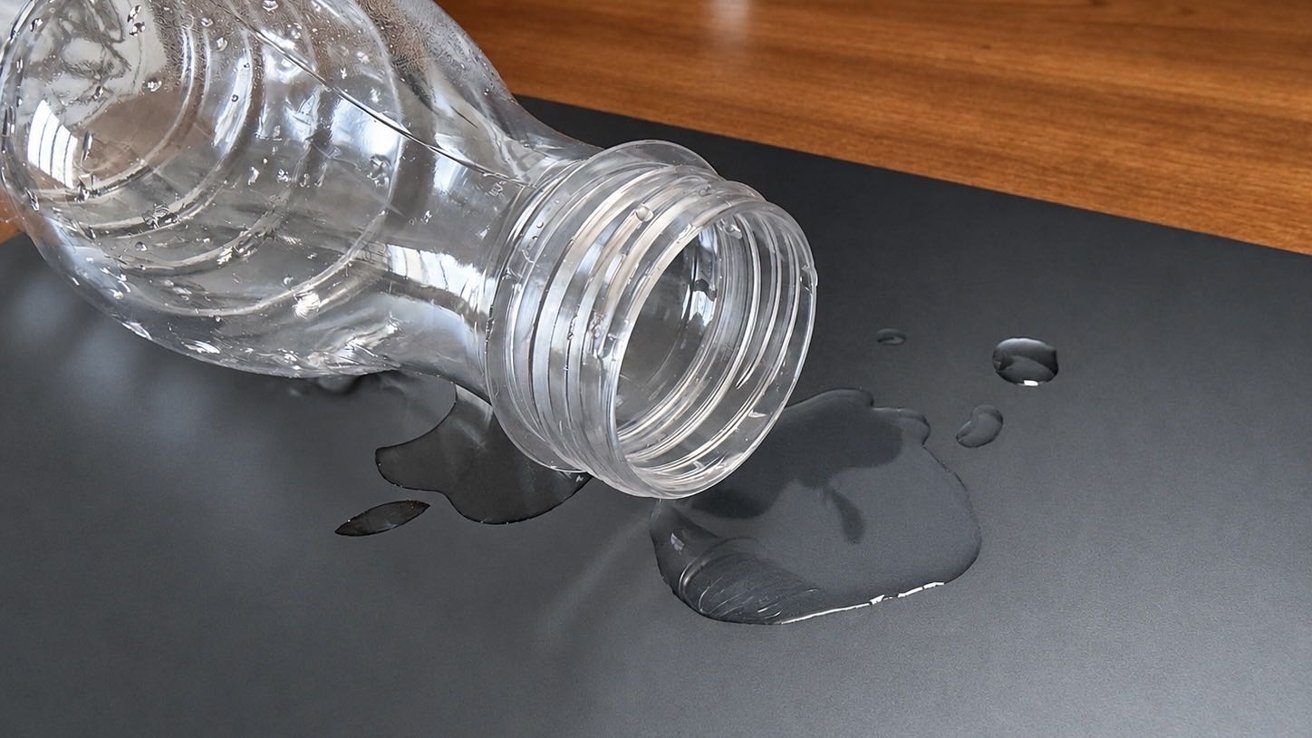

If you spill water on your Mac
A liquid spill can damage your Mac long after the surface dries, making a quick response essential to avoiding an expensive repair. Here’s how to limit the damage and give your Mac the best chance of recovery.
If you spill water on your Mac, shut it down, disconnect power, and blot away visible moisture before checking how far the liquid spread. Water can seep through the keyboard, ports, and gaps in the enclosure, reaching sensitive components even when the outside looks dry.
A few drops on the aluminum enclosure are different from a full cup of coffee spilling across the keyboard. The amount of liquid, where it enters, and what it contains all affect the risk of damage.
Coffee, soda, and other drinks can also leave behind residue that causes problems long after the liquid evaporates. Liquid damage isn’t always obvious, and a Mac that continues working after a spill isn’t necessarily safe to use.
Moisture trapped inside can gradually cause corrosion, leading to keyboard problems, charging failures, unexpected shutdowns, or damage to the logic board. Knowing what to do immediately, what mistakes to avoid, and when to seek professional help can make the difference between a minor cleanup and an expensive repair.
What to do immediately after spilling water on your Mac
Your first priority is to shut down the Mac and disconnect external power, reducing the risk of further electrical damage. Even after shutdown, a MacBook’s internal battery remains connected, so turning the computer off doesn’t eliminate every electrical risk.
- Use the Apple menu to shut down your Mac immediately. If it isn’t responding, press and hold the power button until it turns off.
- Unplug the charging cable, external drives, hubs, and all other connected accessories.
- Gently blot affected surfaces with a clean, soft, lint-free cloth. Avoid pushing water toward the keyboard, ports, or ventilation openings.
- Don’t reconnect the charger or attempt to restart the Mac. Keep it turned off while internal moisture might remain.
- Look for water around the keyboard, trackpad edges, ports, vents, and other openings to determine where liquid may have entered.
Don’t use a hair dryer, heater, or compressed air to speed up drying. Avoid putting cotton swabs or paper towels into ports, and skip the old trick of burying the Mac in rice. Rice can leave behind particles that get trapped inside the computer’s openings.
The same precautions apply to desktop Macs, including the iMac, Mac mini, Mac Studio, and Mac Pro. If liquid reaches one of these computers, disconnect it from external power when it’s safe to do so, and don’t use it again until you’ve assessed the potential damage.
If water reaches a wall outlet, power strip, or another electrical connection, don’t touch the affected equipment. Your safety comes first, even if that means leaving the Mac connected to power.
What to do if only a few drops reach your Mac
A few drops of water on a MacBook’s lid or aluminum palm rest won’t cause serious damage as long as the moisture stays on the surface. Wipe it away with a soft, lint-free cloth, and check nearby seams and openings for any remaining water.
Pay particular attention to the keyboard, trackpad edges, ports, and ventilation openings. Water on the keyboard is more concerning because even a small amount can seep beneath the keys and potentially reach internal components.
If you suspect water entered the MacBook, keep it turned off and consider having a professional inspect it. Don’t assume everything is fine just because the keyboard still works, since moisture can reach internal components without causing immediate problems.
Water inside a USB-C port can also interfere with charging. Don’t connect a cable until the port has dried completely, as trapped moisture can cause corrosion and potentially permanent damage to the connector.
What to do after a major spill or complete submersion
A major spill can cause serious damage if liquid gets inside your Mac. Water can spread beneath the keyboard, reaching the logic board, battery connections, and other sensitive components.
Once you’ve shut down the Mac and disconnected its accessories, gently blot away any visible moisture. Set it on a clean, absorbent surface, and avoid shaking or moving it unnecessarily. Excessive movement can spread liquid that’s already trapped inside.
If you suspect liquid reached the internal components, professional inspection is your safest option. A technician can check for moisture and corrosion, then determine whether cleaning or replacement parts are necessary.
A MacBook that’s been dropped into a bathtub, sink, lake, or another body of water needs even more caution. Remove it only when it’s safe, disconnect external power, and don’t attempt to charge or restart it.
Complete submersion can expose the display, speakers, battery, and logic board to water that’s difficult to remove without taking the computer apart. A technician can assess the damage and determine whether repairs or data recovery are possible.
Severe water exposure can also create battery safety risks. If your Mac becomes unusually hot, starts swelling, emits smoke, or shows other signs of battery damage, don’t attempt to use or charge it.
Coffee, soda, and salt water create additional problems
The type of liquid spilled on your Mac can make a difference because some substances leave behind residue long after the moisture evaporates. Even ordinary drinking water contains dissolved minerals that can contribute to electrical shorts and corrosion.
Coffee and tea can leave deposits inside the computer, although black coffee and unsweetened tea aren’t necessarily more damaging than water. Adding milk, cream, or sugar introduces more residue that can interfere with electrical connections and moving parts.
Soda and juice pose similar risks because their sugars and acids can leave sticky deposits behind. Your keyboard might seem fine immediately after a spill, only to develop sticking keys or unreliable input later.
Salt water is especially damaging because dissolved salts make water more electrically conductive and accelerate corrosion. The danger doesn’t disappear when the moisture dries, since salt deposits can remain on internal components.
If your Mac has been exposed to salt water or a substantial sugary spill, arrange for professional inspection as soon as possible. Just letting the computer dry won’t remove the contaminants left behind.
As for other liquids, like blood, you may have more pressing problems than a damaged Mac. Take care of the bleeding first; the Genius Bar can wait.
How to dry your Mac safely
Leaving your Mac in a dry area with good airflow can help moisture evaporate, but drying by itself won’t necessarily prevent or repair liquid damage. Apple has specific guidance for MacBooks that detect moisture in a USB-C connection.
Compatible MacBook Neo, MacBook Air, and MacBook Pro models running macOS Sequoia or later can display a warning if they detect liquid in the USB-C port, a connected cable, or an accessory.
If you see this warning, Apple recommends shutting down the Mac, disconnecting power, and waiting at least a day before checking whether the port appears dry. If the warning returns when you reconnect an accessory, shut down the computer again and give it another day to dry.
However, Apple’s waiting period applies specifically to USB-C moisture detection, not a MacBook that’s been soaked by a spilled drink. There’s no guaranteed 24-hour or 48-hour drying period that makes a computer with internal liquid exposure safe to restart.
One product designed to help remove moisture is the UAG DryOut Ultimate Laptop Sleeve. It uses reusable moisture-absorbing material intended to draw moisture away from electronics without electricity or an external heat source.
UAG markets it for humidity, rain, condensation, and accidental spills. DryOut has published laboratory performance information supporting the material’s ability to absorb moisture.
The manufacturer’s own instructions acknowledge that DryOut can’t repair damaged electronics, reverse existing corrosion, or replace proper cleaning after exposure to salt water and other contaminants.
A moisture-removal sleeve may help with some forms of exposure, particularly humidity or residual moisture. It shouldn’t replace professional inspection when liquid may have reached a Mac’s internal electronics.
When to repair your Mac and whether AppleCare covers the damage
If water stayed on the outside of your Mac and you wiped it away promptly, you probably won’t need professional repairs. However, if liquid got inside the computer or you notice unusual behavior, it’s worth having your Mac inspected.
Warning signs include charging problems, unresponsive keys, display issues, unexpected shutdowns, and excessive heat.
An Apple Store or Apple Authorized Service Provider can assess the damage and explain your repair options. Independent repair shops may also offer component-level cleaning and repairs, depending on your Mac’s model and the extent of the damage.
Apple’s standard one-year limited warranty doesn’t cover liquid damage, but AppleCare+ and AppleCare One cover qualifying accidental spills. You’ll still have to pay a service fee, and certain types of damage are excluded.
In the United States, Apple’s service fee for other accidental damage is $149 for the MacBook Neo and $299 for other Mac models, before applicable taxes.
There’s an important catch, though. Apple’s coverage terms exclude excessive or catastrophic liquid damage, including situations where a computer has been partially or completely submerged.
Accidentally dropping a MacBook into a bathtub might not qualify for coverage, even with an active AppleCare plan. Apple determines eligibility based on the circumstances of the accident and the terms of your specific plan.
Before arranging service, check your Mac’s coverage status to determine whether AppleCare is active. You can use Apple’s coverage website from another device without turning on the damaged computer.
If your Mac contains important files that aren’t backed up, tell the repair provider before authorizing work. A logic-board replacement or complete device replacement can result in the loss of locally stored data.
Protect your files before a spill happens
Replacing a damaged Mac can be expensive, but losing your photos, documents, and other important files can be even worse. Without a reliable backup, some of your most valuable files could be gone permanently.
Modern Macs use integrated storage and hardware-based security features that can complicate data recovery. If certain internal components fail, even a specialist might not be able to recover your files.
A regular Time Machine backup to an external drive can protect against that kind of loss. Keeping another independent backup, preferably in a different location, provides additional protection if the Mac and its nearby backup drive are damaged together.
Cloud syncing can help protect important documents by keeping copies available on other devices, but it isn’t a substitute for a separate backup. Changes and deletions can also sync across devices, potentially leaving you without an earlier version of a file to recover.
If your Mac survives a minor surface spill and you’re confident no water got inside, check that your backups are current once it’s safe to use again. However, if you suspect liquid reached the internal components, don’t restart the computer just to create a backup.
No Macs were harmed during the making of this article.
Source: www.appleinsider.com
Source link