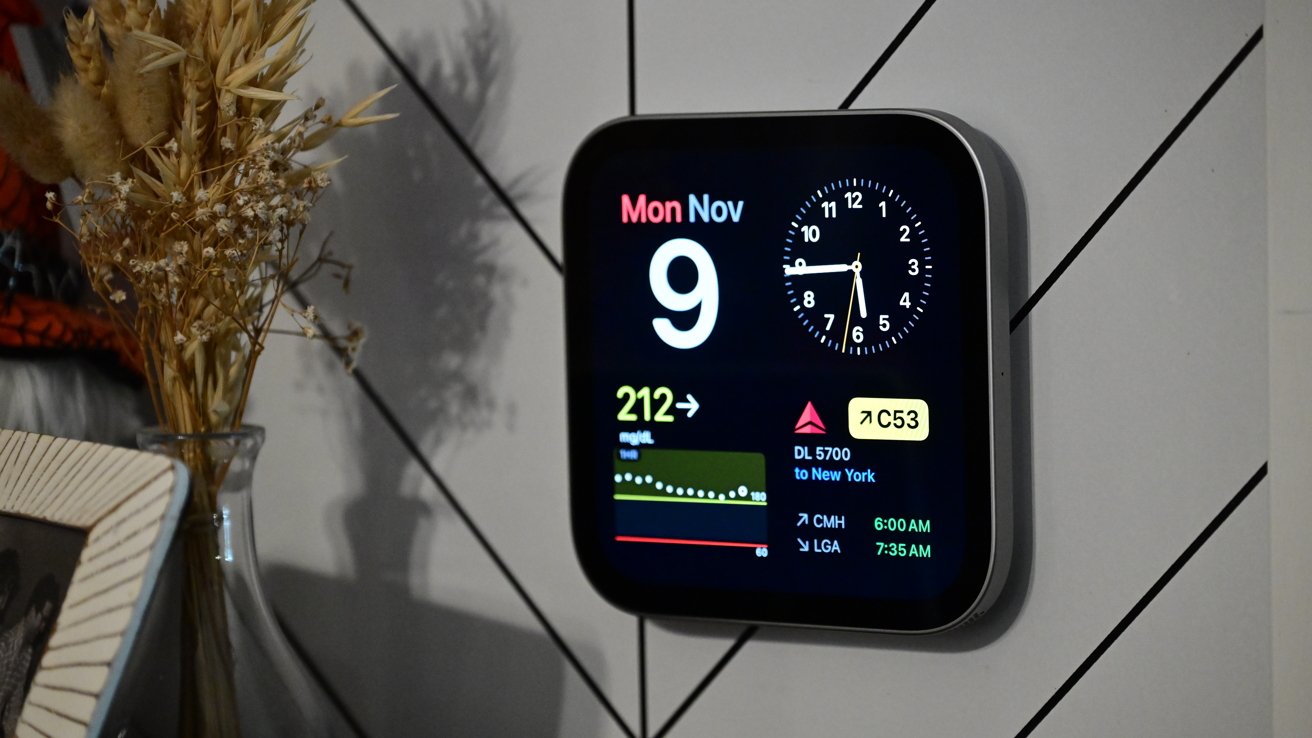

Apple HomeView review: HomeView with some third party widgets
If you buy through our links, we may get a commission. Read our ethics policy.
HomeView is Apple’s first attempt at a smart home display, and while the potential is there, it has a ways to go before we recommend it for everyone.
There was no grand, on-stage introduction for HomeView. Instead, it was announced in a New York City loft, ripe with hands-on opportunities.
I was surprised there wasn’t more fanfare. Cue the Jobsian theatrics. It’s a smart home hub. It’s a smart speaker. It’s a photo frame.
They’re all the same device: HomeView. I’ve been testing it out for more than a week and I’m not sure I’ve ever been more conflicted.
It has big problems, yet I want five of them.
Apple HomeView review: Classic Apple design
There are two versions of the Apple HomeView. There’s a standard, countertop version and a wall-mounted version.
Apple HomeView review: Apple’s new smart home dispay
Despite carrying the same price tag, the wall-mounted version lacks the base and larger external speaker. The countertop model comes in silver, Starlight, Rose Pink, and Space Gray while the wall-mounted model is exclusively silver and Space Gray.
I love the look of HomeView and think it blends into the home well. My other half also loves it, agreeing it’s both “adorable” and “cute.”
Getting new technology into the house isn’t always an easy task, so having something that my partner finds both aesthetically pleasing and useful is a win.
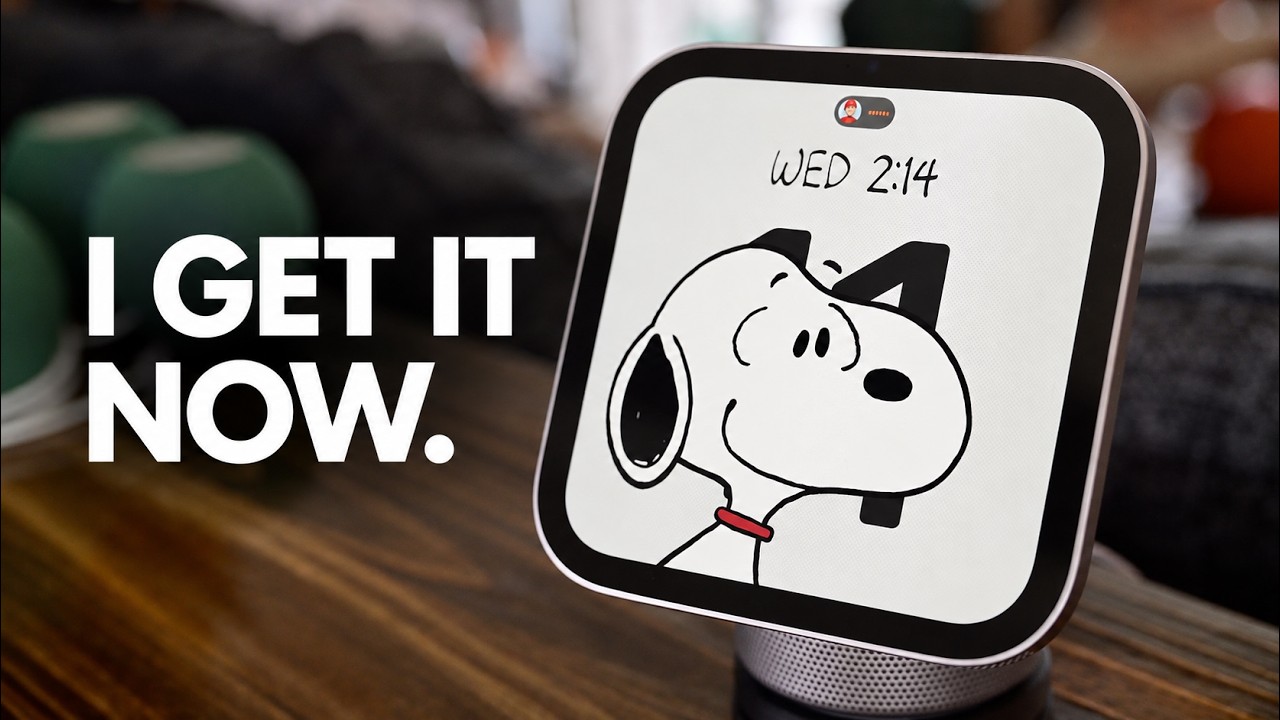
Subscribe to AppleInsider on YouTube
The screen measures about six by six inches, or seven inches on the diagonal. Apple calls it an LED Liquid Retina display and it has a fingerprint-resistant coating, which does a decent job at keeping the display looking nice.
It has 500 nits of brightness, plenty for use indoors, but I think more importantly, it can go as low as 0.3 nits. Depending on your use case, this may be one of the most killer features of the HomeView.
Not even the Apple Watch can go that dim. By dropping so low, it is an ideal bedside companion. The screen gets so dark it won’t disturb you while you’re sleeping, but there is just enough visibility to see what’s on the display.
No other smart display I’ve tested, like those from Amazon or Google, have gone this low. I hate sleeping next to a bright display, so this ultra-dim display is much appreciated.
Apple HomeView review: Taking a FaceTime call on HomeView
Within the somewhat chunky bezel is a 12MP Center Stage camera. It has very wide POV, easily keeping me in frame throughout the kitchen and zooms in to track your face.
Both models have four beam-forming microphones and speakers on the underside of the display. There’s a speaker grille along the bottom edge of the display.
For the countertop version, the weighted base houses a second speaker system that absolutely provides richer, deeper sound. It’s as good as a HomePod mini 2.
Apple HomeView review: Setting up HomeView with a nearby iPhone
There’s a silicone pad on the bottom to prevent it from sliding around and the back has a USB-C port. In the box is a braided USB-C to USB-C cable to connect to the included 30W power adapter.
Internally, Apple is using its A18 processor. It’s paired with 8GB of memory.
Apple HomeView review: Interface navigation
HomeView, as a new platform, has its own navigation flow to adjust to. It’s a bit of an odd mashup of Apple Watch, Apple TV 4K, and iPhone, yet it’s natural and easy to learn.
Apple HomeView review: Apple TV app
From your chosen face, you can swipe left and right to rotate between the different faces you’ve considered. If you swipe from the top-right, you’ll open Control Center and pulling down from the middle invokes Siri AI.
Apple HomeView review: Side view of the countertop version
Dragging up from the bottom pulls into your app view. What is a little confusing is when or how you can customize all these different views.
The app view shows all the applications that you can use on HomeView but it also has widgets. Then you have your HomeView face, which also can potentially have widgets.
Apple HomeView review: App view with widgets
Apps can have light, dark, tinted, or clear appearances. You can change their order by dragging and dropping the app icons.
Oddly enough, Control Center isn’t customizable. It is preset with brightness, volume, and other system controls but you can’t change the layout or add extra controls.
Apple HomeView review: Faces and faces
Out of the box, HomeView has a dozen different faces to choose from. These will be the main view of your HomeView and where you come back to when not interacting with it.
Each of these faces have varying levels of customization and sometimes nifty tricks paired with them.
Home Camera: With this face, you can add up to nine live feeds of your Apple Home security cameras. The grid automatically adjusts based on how many cameras you have selected.
Home Modular: Another smart home-focused face, Home Modular lets you choose a combination of your Apple Home accessories, camera feeds, a clock face, and the intercom. It supports one of three layouts.
Photos: Photos shows random suggested photos, specified photos, or selected albums. This even works with shared albums.
Memories: Similar to the Photos face, this one chooses from your collection of photo memories to display.
Analog: A traditional, full-screen clock. You can choose with or without tick marks, with or without numbers, different sizes, and different colors.
Digital: Digital shows a digital clock and has configurations for colors, style, and font. It also has two spots for mini widgets.
Apple HomeView review: The flow face follows you as you move
Flow: With this face, it shows a colorful swirling background. Using the front-facing camera, it will track your movements around the room and react to them.
Snoopy: Like the other Snoopy faces Apple has released for Apple TV 4K and Apple Watch, the Snoopy face will show various animations, often reacting to the weather or holidays.
Modular: Unlike Home Modular, the standard Modular face can show four widgets in a grid, including home accessories.
Apple HomeView review: Fade face
Fade: Inspired by a sundial, the numbers fade in and out with the clock hand as it traverses the clock face.
Weather: See the current weather or the upcoming forecast, right on the HomeView
Calendar: See the current date and accent it with a color of your choosing.
One of my biggest problems with HomeView is that I love so many of the faces. Sometimes I want to use the security camera one while other times I just want it control-heavy.
I struggle between seeing Snoopy’s fun animations, the forecast, or controlling my living room, bedroom, or kitchen lights.
It would be nice to have the face change throughout the day, possibly even tied to focus modes. For our main HomeView, I want to use the Modular face early in the day with our family calendar, the weather, time, and recommended home accessories.
Midday, it can change to something more elegant like the Fade face. To wrap the day, I want it back to a Modular face with the music widget, home accessories, and podcasts.
I think these faces should also adapt to your positioning in the room. We see adaptive faces a lot with thermostats that show limited content with a large font when you’re far away so it’s still legible, but then shift to more data-rich as you approach.
An easy way to pull this off is with screensavers. Snoopy could be a screensaver who fades away as you walk up to the display to control it.
Apple HomeView review: Multi-user support
HomeView supports up to six users. They are verified by facial recognition, and then their personal device if facial recognition fails.
When recognized, HomeView populates with your personal information across apps, like the calendar or Messages.
Enrolling works a bit like Face ID, where you tilt your head up, down, left, and right for it to get a complete scan. It’s not as accurate as Face ID, but it works from across the room while Face ID doesn’t.
Apple HomeView review: Setting up HomeView
Once enrolled on one HomeView, your facial scan is automatically used on all others so you don’t have to scan your face each time.
To test, both my partner and I each enrolled our faces, then we’d take turns trying to get into one another’s content. A few times we got close, catching glimpses of message content before it realized I had jumped in frame.
Sometimes it would still take a few moments for our personal content to load, which applies to widgets too. Widgets with personal information will be greyed out until your face is recognized.
Apple HomeView review: Apps and widgets
There are several first-party apps available on HomeView. Alarms, Calendar, FaceTime, Find My, Home, Intercom, Messages, Music, Podcasts, Reminders, Safari, Timers, Weather, and World Clock all come pre-installed.
Some Apple apps will show on HomeView alongside your other apps, but they are running from your phone. Right now, that includes Audiobooks, Apple TV, News, and Apple Classical Music.
It’s kind of odd how these apps are broken out. I don’t understand why Apple Music is native, but Apple Classical Music is not.
Apple HomeView review: Apple TV app
The same goes for Apple TV. You start pulling on that thread and things just get more confounding.
See, video and audio apps like Apple TV work on HomeView, but only if optimized to work with CarPlay. At the time of this review, there are no streaming services that support CarPlay and no confirmation any of them will.
I understand it from a practical standpoint. HomeView is intended to be used with quick interactions so you’re not standing there playing a game on it.
By supporting CarPlay audio and video apps, it’s one less new platform devs technically have to build for. Plus, the car shares similar usability guidance, i.e. quick interactions.
Not going to sugarcoat it though, I think it would have been more beneficial and simpler just to allow third-party apps, even if it limited the compatible categories.
Apple HomeView review: Some third party apps on HomeView
Currently, outside of Apple’s apps, I also have Sofa, MLB, NYTimes, CarTV, and Spotify showing on HomeView. I expect this list to grow.
Besides full apps, there is one way for you to use third-party apps on HomeView — widgets. If an app supports the small widget format, it will (mostly) work on HomeView.
That’s another shared commonality with CarPlay that also supports the small widget format. Any app’s small widgets on your iPhone will automatically show on HomeView and you can add them to different faces.
This quickly unlocks a ton of functionality for HomeView and I’m not mad at all about this implementation. I’ve started adding a ton of different widgets to my HomeViews.
With the Oura widget I can see my sleep stages from the night before, Awaire shows my air quality, Carrot Weather is self-explanatory, and X shows me trending news stories. I also use a Dexcom G7 glucose sensor, so the Dexcom widget shows me my blood sugar all day.
Unfortunately, even though HomeView is repurposing existing widgets, not everything works. Dexcom for example, doesn’t render the graph correctly if using a tinted face.
Some widgets are just shortcuts to the apps, so even if they show on HomeView they don’t do anything. That’s what I ran into with apps like Ring and SwitchBot.
Other apps seem to have problems with personal info. FedEx has a small widget but the content is blocked out. Kia’s widget looks great with a lot of info, but the lock and unlock buttons don’t work.
In the short term, I fear this is going to be a bit of a mess for users. It will be confusing as there are multiple levels of apps that work.
They could be native apps, CarPlay apps that run on HomeView, fully working widgets, widgets that load but can’t be interacted with, widgets that accidentally hide personal info, and widgets that don’t load at all.
Part of this is on lazy developers, but Apple can’t escape its culpability for making this unnecessarily complicated. The good news is that this is all software-related and can be rectified with a bit of work.
There’s no telling how long it will take for that to happen.
I’m a bit cautious with smart home displays trying to do too much. If they try to do everything, they end up being bad at everything.
I don’t think it makes sense to truly open up HomeView to every third-party app out there. It will lose its sense of purpose and it still isn’t an ideal device for gaming or checking your email.
Apple HomeView review: Playing a podcast on HomeView
There’s a degree of inexplicable inconsistency with even Apple’s apps though. Why is browsing Safari fine, but reading Apple News isn’t?
Furthermore, I think it’s shocking for Apple to develop a whole recipe manager and cooking interface for Apple News and not have it available on HomeView. Apple Watch is also meant for short interactions and glanceable info, but it has the Apple News app.
Maybe there’s a compromise of eventually opening up HomeView to limited categories of apps. I think weather apps, smart home apps, news apps, AI chatbots, cooking apps, and video apps, among others would make sense to live on HomeView.
I should mention that the HomeView can be used with AirPlay. You can cast audio from the HomeView to other speakers or you can cast audio and video to the HomeView, which is at least something.
Apple HomeView review: Serious smart home chops
One of the standout features of HomeView is its smart home abilities. Like the Apple TV 4K and HomePod, HomeView will serve as a Home Hub.
A Home Hub for Apple Home users is what enables encrypted remote access, local video processing, and runs schedules and automations. It serves as a Thread border router too for your Thread mesh accessories.
I’m not sure if Apple did some secret magic to prioritize smart home control, but it is astonishingly fast. It’s the fastest device in my home when it comes to controlling my Apple Home devices.
One accessory I have is the Channel Master Pro Floodlight in the backyard. It’s aimed at our chicken coop and if we ever hear or see anything, we’ll turn the floodlight on.
Apple HomeView review: Checking the front doorbell
We can see anything suspicious from the house and it provides functional light if we have to venture out there in the dead of night. It’s a great light, but for my use, it needs a physical control.
When we see movement in the yard, by the time we open the Home app and get to the accessory, the intruder has almost always moved on. I’ve used a button in the past, but that still can have a slight delay to it.
HomeView, is next-level fast. It’s one of the primary home controls I have on my Home Modular face.
One tap and before my finger has had a chance to pull away the light is already on. It’s fantastic.
Cameras also shine, responding instantly and showing true live feeds on the Home Camera face. I can’t express how much my partner and I love having a glanceable, always-on feed of the front door.
Sometimes I walk past only to realize a package had been delivered. And my partner appreciates being able to see who is at the front door before answering it without having to have their phone on them.
When I’m working in my studio, the Home Camera face lets me monitor the kids’ playroom. There’s so much utility.
I’m not sure if it’s a bug or not, but the one problem I ran into is that passive home accessories cannot be added to the Home Modular face. Think contact sensors, environmental sensors, or presence sensors.
The reason I want them is that I have my own outdoor sensors. I have both a Netatmo Weather Station and an Eve Degree.
Rather than relying on publicly available weather data from miles away, I can use my own sensors. They show in the Home app on HomeView, but can’t be added to the faces for some unknown reason.
The biggest problem that users will face with their smart home tech is lack of compatibility with other ecosystems. This is commonplace with smart displays. You can’t use your Google Home or Apple Home devices with the Alexa Show or your Amazon devices on a Homey Portal.
What’s most problematic here is that there is at least one big holdout. Amazon-owned Ring.
There are a lot of users out there who may use Apple Home but still use a Ring doorbell. Nest devices face a similar issue, at least the older ones before they started supporting Matter.
HomeView is designed for Apple Home users, and only Apple Home users. If you live in any other smart home ecosystem, HomeView won’t add anything to your experience.
Apple HomeView review: Siri AI
Voice is a primary control for the HomeView. You can open apps, answer messages, play back music or a podcast, and get answers to questions.
HomeView has full support for Siri AI, complete with personal context. In all my testing, Siri AI was as fast as it ever was.
Some things, like smart home commands, did feel quicker than when I’m doing them on my iPhone.
It’s very helpful to have the deep access to your calendar and messages. For example, last week I asked Siri when trivia was and it found the references in my texts.
Apple HomeView review: Siri AI on HomeView
I followed up the original message to track down where trivia was and then added it to my family calendar. Siri AI kept the original context of the conversation and properly responded to my follow-ups.
This works side-by-side with multi-user support. That way I can access my messages while my partner can access theirs.
Siri AI can answer general questions with deep world knowledge, which is better than on HomePod thanks to the display that can provide additional context when necessary.
It wouldn’t be Siri without some odd missteps though. Several times I tried to set my good morning scene by saying “Siri, good morning!” and it just told me it couldn’t do that from HomeView, even though I’ve done it before and set the same scene regularly from my HomePod mini.
Apple HomeView review: One-off features
Baked into HomeView are a bunch of one-off features that are cool on their own. They’re great, but not big enough to pull out into their own dedicated sections here.
Take Intercom for example. This is the first time Apple has had a dedicated Intercom app on its devices. Intercom is native to the HomePod line and within the Home app.
From HomeView, you can speak to any person or room in your home. It’s been increasingly helpful in my home since installing the HomeViews.
My partner can be up in the kitchen and use the intercom to reach me in the studio. Or if I’m not sure where my partner went, I can use the intercom to call for them throughout every HomePod or HomeView in the home.
Intercom also goes to the Home app, so your family members can be reached, even if they’re outside. As long as they have their iPhone, Apple Watch, or iPad on them.
In all our testing, Intercom is quick, reliable, and has good audio quality. It’s one of those features you start to use and get hooked on its convenience.
Another fantastic feature is cooking. Hold any recipe you find online near the HomeView and it will hand it off to your smart display.
Apple HomeView review: Cooking on HomeView
The recipe loads in Safari, but a cook icon appears in the lower-right corner. Tapping into this dedicated cooking mode, you can go through a checklist of ingredients and each individual step.
If there are timers within a recipe, they’re highlighted and tapping on them will start the countdown. Multiple timers can exist at once with up to three showing as Live Activities at the top of the display.
Apple HomeView review: Cooking with pre-populated timers
I love how if you continue to use the HomeView, like moving to watch a TV show, the recipe exists as a Live Activity with the current step. So you can quickly tap into it to get back to your spot.
It didn’t happen every time, but at least a few times I was able to inadvertently bypass paywalls with the cooking feature. It loads in Safari, but when I go into cooking mode, it pulled the recipe ingredients and steps without having an active subscription.
By being based around Safari, it does complicate some aspects of recipes. If you use a cooking app like Crouton, Paprika, or Saucepan, those apps aren’t available on HomeView.
If you saved the recipe from online, you can just go back to Safari on your iPhone and it will still work. And any recipes you like, you can pin to come to later.
Mirror is a clever little trick when you’re getting ready for the day. It lives in Control Center and when you open it, it activates the front-facing camera so that you can see yourself.
It’s perfect if you’re checking your hair or your fit before you head out the door. By default it is zoomed in on your face but you can also zoom out for a full-body view.
Apple HomeView review: Mirror app on HomeView
If you’re an early riser and it’s still dark, you can turn on the edge ring light. It’s not super bright, but enough to add some extra lighting when necessary.
Apple HomeView review: Modular mounts
Officially, Apple offers up two wall mount options for HomeView. For both of these, it partnered with Schneider Electric.
Both wall mounts, one USB-C and one hardwired AC, are produced by Schneider Electric but sold by Apple and offered when buying a HomeView.
Apple HomeView review: Two versions of the HomeView wall mount
The mounts themselves are very similar to another. They have a hefty metal and plastic back plate that is covered by a white, silicone-covered face plate.
The USB-C version is just what you’d expect, a basic mount with a braided USB-C cable coming out of it. The cable is permanently attached and you can either drape it down the wall, or hide it within the wall before connecting to a USB-C power supply.
On the AC version, instead of a USB-C cable sticking out you have a power supply on the back of the plate with inputs for the ground, neutral, and hot wires.
I opted for the AC wired version because my plan was to remove one of my wall switches and put the HomeView in its place. I’d then swap out my regular bulbs for Philips Hue filament smart bulbs.
Apple HomeView review: Installing my HomeView into my wall
My HomeView would then act as the primary light switch for the ceiling lights. It would also control my GE Matter under-cabinet lights, and my living room smart lights.
Regardless of which mount you use, there is a male USB-C connector in the center that connects to HomeView. HomeView magnetically attaches to the mount, which requires substantial force to pull off.
The silicone pad and the USB-C connector in the middle add shear strength, so you will never accidentally knock HomeView off the wall as you pass. If you do need to remove it, it still comes off when necessary.
These two mounts are good if you plan on putting your HomeView on the wall, but I think HomeView has untapped potential. I wouldn’t be surprised to see third party mounts and stands in the coming months from frequent Apple collaborators like Belkin, Satechi, or Twelve South.
In the meantime, I took it upon myself to create some. The first one I made was a swiveling stand for the countertop version.
Apple HomeView review: Custom spinning base for HomeView
Instead of dragging the silicone base across the counter, I made a three-inch stand with a bearing in the middle to let it effortlessly spin on my counter. It was a quick one-hour job on my 3D printer.
I had more fun with the wall-mounted version. I probably could have devised a whole new mount to replace the Schneider Electric one, but I took the easy way out.
Instead, I just created a curved back that went behind the existing USB-C mount. It then screws into place with two 6mm M3 bolts and has a common two-finger GoPro mount on the back.
Apple HomeView review: 3D printed GoPro mount for HomeVie
Using a GoPro tripod mount I had on hand and a spare mic arm, I turned the wall-mounted version of the HomeView into an elegant hovering smart display that looks great on my desk.
I can raise it up and down, left and right, and position it up against my monitor. It’s amazing, and I love that I can use HomeView at my desk without having to take up any extra space.
You could also use this same mount in the kitchen by connecting it to an under-cabinet mount. That would make the HomeView an even better kitchen companion for FaceTime, recipes, or watching sports while cooking.
Apple HomeView review: I love having the display float above my computer
These 3D printed mounts and stands work well, but I am eager to see what others come up with. If any do release, they wouldn’t require you to buy the expensive Schneider Electric wall mount either.
Apple HomeView review: What else we need
The more I’ve interacted with HomeView, the more I love it. Simultaneously, I also keep finding more little things that I want it to do.
I’ve already laid out several of them like scheduling faces throughout the day, sensors on faces, improved widget support, different mounts, and more.
Recent code leaks do point to some potential new features coming soon. Usually I wouldn’t go into rumored features during a review, but I think they’re important to how Apple could be developing this platform.
The first possible new feature is support for AI chatbots. This is an app category for CarPlay and would be trivial to add to HomeView.
Code references point to Apple actively working on this. I think that would be very useful to see ship.
The second new feature revealed in code is turning the HomeView into a HomeKit Secure Video camera. It would reportedly use the Center Stage Camera and act like other Apple Home security cameras.
There’s a lot of nuance to it, but that would add a lot of value to HomeView. Plus, that means HomeView could be a motion sensor too.
You’d be able to configure automations to turn on the lights in a room whenever someone walks in and turn off when they leave.
To be super clear here, these features have not been announced and there is zero guarantee they ever will be. Their inclusion in the code suggests they could be coming, but don’t be making purchasing decisions based on that.
Apple HomeView review: I’m cautiously optimistic
Here’s the bottom line: HomeView is finally here. It’s not perfect, but I genuinely love having it. It’s what I’ve been waiting for for years now.
It’s built for Apple users, and that’s it. For better and worse.
At times, it’s that Apple magic that makes it special. In my family, we share photos of the kids through a shared album in Apple Photos.
We tried using a dedicated photo frame to share them, but it required photos to be sent by email or through a manufacturer app that no one ever used. Now I can set up a HomeView for my parents with the shared album as the photo face and it will automatically update.
My house is fully powered by Apple Home devices. My shades, locks, HVAC, lights, fans, appliances, cameras, and more are all Apple Home compatible.
I’ve been jealous of the smart displays other ecosystems enjoy. I simply wanted a sleek, always-on display where I could see and control my home, preferably without getting bombarded with on-screen advertisements.
Apple has delivered that experience and much more with HomeView. It’s just very, very shallow right now, and hard to recommend.
Now that it’s here, I’m already looking to what’s next. A larger version would be great.
While opinions very incredibly greatly on the screen size amongst the AppleInsider staff, the seven-inch display is perfect for me on the first model. I don’t have room for anything larger on my desk or nightstand.
Rumors do say that Apple is working on a 9-inch version next. I think kitchens especially would benefit from that larger size.
But, we can’t review hardware for the future. It has to be about now, and if you should buy it today.
As it stands, now, HomeView is buggy, limited in apps, and expensive for what it is and does. But I also want more of them.
Despite putting a wall-mounted HomeView only six feet from the kitchen, my partner has already requested another one to put on the kitchen counter.
I want one on my desk and another bedside so I’ll have to do a gradual expansion of our HomeViews. Hopefully I can find them on sale.
Like I said, HomeView has great hardware, but the software has a ways to go. It’s shallow, and Apple has a wealth of opportunity ahead.
Apple HomeView review: Pros
- Sleek, compact, premium hardware
- Fantastic support for Apple Home
- Super customizable between faces, widgets, colors, & mounts
- Siri AI works well
- Lots of little touches
Apple HomeView review: Cons
- No real third-party apps
- No third-party video apps currently supported
- No control for other smart home ecosystems
- Software feels very early
- On the expensive side
HomeView rating: 2.5 out of 5
How you rate HomeView is kind of how you perceive it. If you are an Apple Home user who wants a smart display that honestly doesn’t do that much else yet, this is an easy 4 out of 5 rating.
If you aren’t an Apple Home user, or want it for its other smart display capabilities, the rating drops down even lower than what I put on the piece here. It’s capable, but certainly leaves me wanting more.
Both scenarios leave the rating room to grow, as Apple’s newest platform gets its sea legs. The hardware is there, the software across the board just has to mature. A lot.
Where to buy the Apple HomeView
The Apple HomeView retails for $299, with retailers Amazon, B&H, and Expercom all carrying the smart home hub. Amazon, in particular, is offering a small discount on the device at the time of this review.
Check out our Apple HomeView Price Guide, which is updated throughout the day, to compare prices and view the latest availability.
Source: www.appleinsider.com
Source link