Keeping your laptop fan clean protects performance, reduces noise and helps prevent overheating.
-
-
-
- Update BIOS and check fan connections if issues persist after cleaning.
- Power down, unplug and use short bursts of compressed air through vents to clear dust safely.
- Routine cleaning prevents thermal throttling, reduces noise and extends hardware life.
-
-
Why does dust affect laptop cooling?
Traditional fans pull in air to manage heat, but they also drag in dust. When dust blocks the vents, your laptop cooling suffers. The fan must work harder to push air through components. This increases noise and drains the battery. Poor heat dissipation directly impacts device performance. As temperatures rise, the processor automatically slows down to prevent damage. This thermal throttling causes lag during heavy workloads. Keeping pathways clear ensures consistent speed.
What tools do you need to clean a laptop fan?
The right tools make cleaning a laptop fan easier and safer. Here’s what you’ll need to get the job done without causing internal damage.
-
-
-
- Compressed air: A can of electronics-safe compressed air is the most effective tool for blowing out loose dust from vents.
- Damp paper towels: Slightly wet paper towels can wipe away grime from the exterior vents and structural casing.
- Cotton swabs: Small swabs help dislodge stubborn dust bunnies caught in the fan blades without applying too much pressure.
- Magnetic screwdrivers: If you plan to open the chassis, a precision magnetic screwdriver helps you keep track of tiny screws.
-
-
Avoid household vacuums when cleaning a laptop fan, since standard vacuums can generate static electricity that may damage sensitive motherboards and internal circuits.
Steps to disassemble and clean your device safely
-
-
-
- Unplug the device from all power sources and shut down the operating system completely.
- Remove the battery if your model has an external, detachable battery pack.
- Unscrew the bottom plastic cover using a precision magnetic screwdriver, keeping track of where each screw belongs.
- Locate the internal fan and gently remove any tiny screws holding the fan cover in place.
- Spray compressed air in short, controlled bursts across the fan blades and copper heat sinks to dislodge dust.
- Wipe the surrounding plastic housing carefully with a slightly damp paper towel, ensuring no moisture touches the motherboard.
- Reattach the fan cover, replace the bottom casing and secure all screws before powering the device back on.
-
-
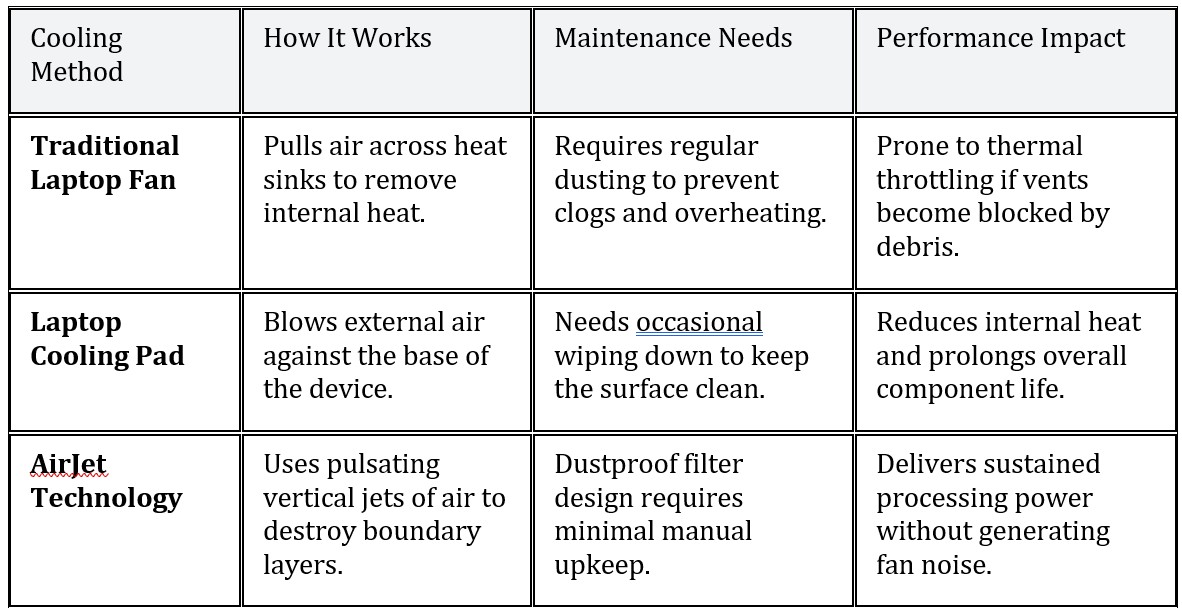
How do different cooling solutions compare?
How do you troubleshoot persistent laptop fan issues?
Sometimes a laptop fan won’t spin correctly even after a thorough cleaning. If the blades only spin briefly on startup, you might have a loose connection. Reopening the chassis to inspect the motherboard leads and ensuring the cable is seated securely often resolves the issue. If the hardware connections look fine, the problem might stem from a software glitch. Updating your basic input/output system (BIOS) can refresh thermal profiles and restore normal operation. When software fixes fail, you may need to replace the component to prevent overheating.
How often should you perform routine fan maintenance?
Experts recommend clearing out dust every three to six months to maintain optimal performance. The exact frequency depends on the age of your device and the environment where you work. Homes with pets or high dust levels naturally require more frequent upkeep to prevent overheating. Evaluating device repairability is an important step before attempting any deep cleaning. Some modern ultrabooks are difficult to open because they feature glued components or hidden screws. If the chassis feels too complicated to remove, external cleaning methods remain the safest choice. For users who prefer not to open their hardware, a laptop cooling pad offers a practical external solution. A high-quality cooling pad provides additional airflow to the base of your computer. This extra ventilation reduces the strain on internal fans and helps manage temperatures during intense tasks.
Looking ahead: What is the future of laptop cooling innovation?
Innovative solid-state cooling options like AirJet technology are changing how devices manage heat. Instead of spinning blades, these tiny chips use massive backpressure to suck in air and eject heat efficiently. This method removes more heat with less air volume, which naturally minimizes dust accumulation. Dustproofing capabilities are a major advantage of modern thermal design. Because advanced cooling chips generate high backpressure, manufacturers can install specialized dust filters on the device casing. These filters protect the entire system and virtually eliminate the need to take apart the computer for maintenance. Improved thermal solutions directly translate to better processing capabilities. Without the limitations of traditional airflow, devices can avoid the thermal throttling that slows down older models. Whether you rely on cutting-edge solid-state cooling or traditional case fans for larger desktop setups, proper heat management is critical for running heavy applications smoothly.
Frequently asked questions
What is the safest way to clean a laptop fan? The safest way to clean a laptop fan is to turn off and unplug the laptop, then use compressed air to blow dust out through the air vents in short bursts. Avoid spraying liquids into vents or touching internal components unless you are comfortable opening the laptop. This method helps remove dust without risking hardware damage.
Can I clean my laptop fan without opening the laptop? Yes. In many cases, you can clean a laptop fan without opening the device by using compressed air through the intake and exhaust vents. This is recommended for routine maintenance when dust buildup is moderate and the laptop is still functioning normally. Opening the laptop should only happen if overheating or loud fan noise continues after external cleaning.
How often should I clean my laptop fan? Most laptops benefit from fan cleaning every three to six months, depending on your environment. If you use your laptop in dusty areas, notice increased fan noise or experience overheating, more frequent cleaning may be required to maintain proper airflow and cooling performance.
Is it safe to use a vacuum or household blower to clean a laptop fan? We don’t recommend using a standard vacuum or household blower, because excess suction or airflow can damage fan bearings or create static electricity. Instead, use electronics-safe compressed air in controlled, short bursts and avoid forcing the fan to spin rapidly.
What are signs that my laptop fan needs cleaning? Common signs include overheating, loud or constantly running fans, reduced performance or unexpected shutdowns. These symptoms often indicate dust buildup restricting airflow, and cleaning the fan can help restore normal cooling and system performance.
How does dust accumulation affect device performance? Dust blocks the internal heat sinks and prevents air from flowing freely. When the processor gets too hot, the system automatically slows down performance to prevent permanent hardware damage.
What is AirJet technology and how does it prevent dust? AirJet is a solid-state active cooling chip that uses pulsating jets of air to remove heat. Because it generates high backpressure, it allows manufacturers to install dustproof filters on the exterior of the device.
Does a laptop cooling pad really help reduce internal temperatures? Yes. A laptop cooling pad provides extra external airflow to the bottom of your device. This reduces the overall workload on your internal fans and helps dissipate heat during demanding tasks.
Dell reported this
Source: www.dell.com
Source link