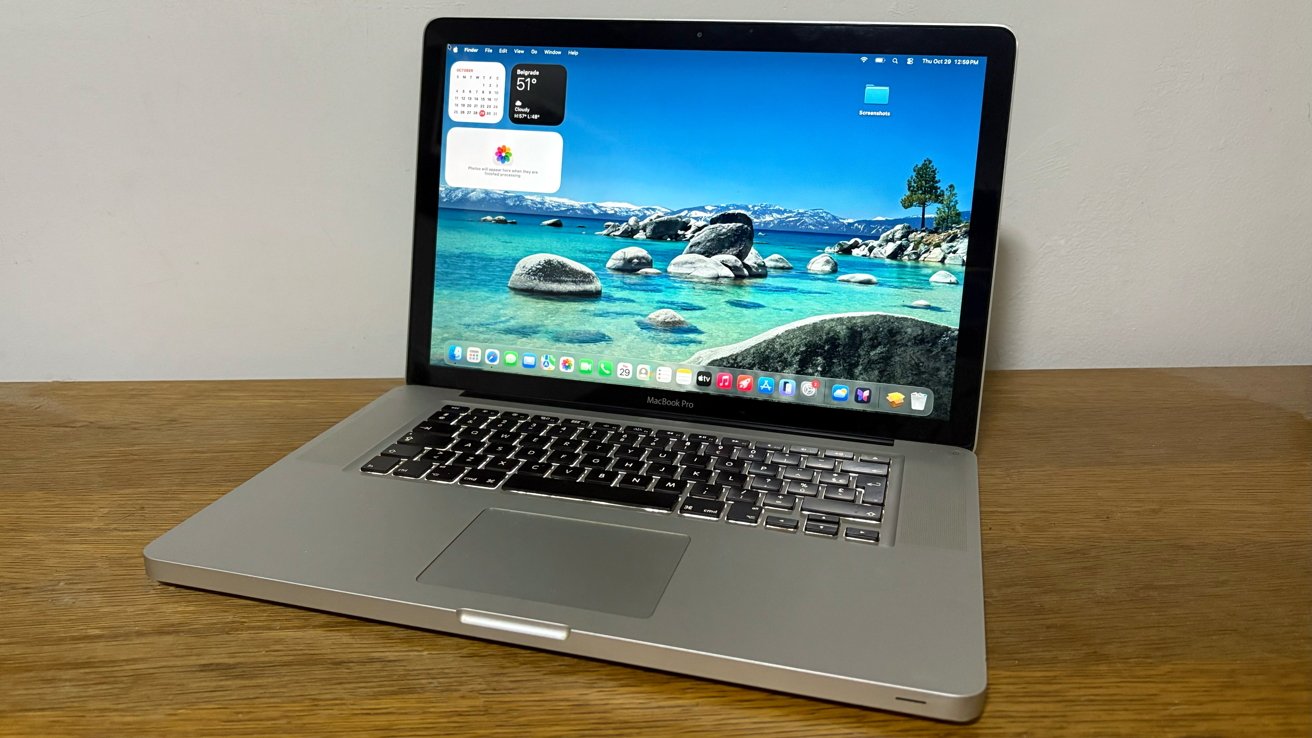
With OpenCore Legacy Patcher 3.0.0, you can install macOS Tahoe on Macs that debuted more than 15 years ago.
With OpenCore Legacy Patcher, now on version 3, you can get macOS Tahoe running on Intel Macs released more than fifteen years ago. Here’s how to get everything set up.
Though Apple Silicon Macs have already moved on to macOS Golden Gate, the preceding macOS Tahoe remains a crucial update for older Apple computers. macOS Tahoe is the last release of macOS with support for Intel-based machines, running on select Macs released in 2019 and 2020.
Owners of older hardware were simply out of luck, until now. With Dortania’s OpenCore Legacy Patcher 3.0, a prominent third-party solution, it’s possible to run macOS Tahoe on a variety of unsupported Macs, including models over a decade and a half old.
At the time of writing, version 3.0.0 of the OpenCore Legacy Patcher is still in the release candidate stage. This means that, although macOS Tahoe will likely run on your older Mac, you might encounter difficulties installing it, and you might experience bugs in the OS itself.
Nonetheless, OCLP remains as significant as it has ever been for owners of vintage Apple hardware. With it, you can get new software features and web browsers on machines Apple has given up on altogether.
The patcher uses the OpenCore bootloader to “inject and patch data in memory instead of on disk.” According to the OCLP GitHub page, this is why the patcher can achieve near-native levels of performance on officially unsupported Apple hardware.
OpenCore is a so-called custom bootloader, loaded before the main operating system. It’s an open-source project, available on acidanthera’s GitHub page. At startup, it lets you select between one or more operating systems currently installed.
On its own, OpenCore is commonly used in the Hackintosh community, where people install macOS on non-Apple PCs. This guide, however, focuses only on OpenCore Legacy Patcher 3.0 and how to use it to install macOS Tahoe on genuine, unsupported Mac computers. No prior knowledge is necessary, apart from basic familiarity with macOS.
Before upgrading to macOS Tahoe, it’s important to understand which operating systems and Mac models are compatible with Dortania’s OpenCore Legacy Patcher 3.0.
Which versions of macOS can you run with OpenCore Legacy Patcher 3.0.0?
OpenCore Legacy Patcher lets you install any version from macOS Big Sur to macOS Tahoe on select unsupported machines. Version 3.0.0 introduced macOS Tahoe support, while older builds of the patcher only support macOS Big Sur through macOS Sequoia.
For older versions of macOS, AppleInsider suggests checking out dosdude1’s Catalina patcher. NexPostFacto is great for even older Mac computers that can’t officially run macOS Mavericks, like the original Intel iMac from 2006.
At the time of writing, OpenCore Legacy Patcher 3.0.0 is primarily intended for use with macOS Tahoe 26.7, macOS 26.7.1, and macOS 26.7.2. As it currently stands, macOS Golden Gate support is neither planned nor feasible, since the update only supports Apple Silicon Macs.
Which Mac models are capable of running macOS Tahoe via OCLP?
According to the OpenCore Legacy Patcher GitHub page, the software makes it possible to run macOS Sequoia on the following unsupported Mac computers:
- Late 2008 to 2017 13-inch and 12-inch MacBooks
- Late 2008 to 2017 11-inch and 13-inch MacBook Airs
- Early 2008 to 2017 13-inch, 15-inch and 17-inch MacBook Pros
- Early 2009 to 2014 Mac minis
- Mid-2007* to 2019* 20-inch to 27-inch iMacs
- Early 2008 to 2013 Mac Pros
- Early 2009 to 2011 XServe
Note that Mid-2007 iMac models require an upgraded CPU for use with OpenCore Legacy Patcher. These computers can be upgraded with either a T9300 2.5 GHz Intel Core 2 Duo or a T9500 2.6 GHz Intel Core 2 Duo. 2019 iMacs currently cannot boot into macOS Tahoe by default, but this issue is being worked on.
For Early 2009 through Mid 2011 iMacs, as well as Early 2008 and 2009 Xserve models, an upgrade to a Metal-compatible GPU is recommended for better graphics performance and graphics acceleration. Metal is Apple’s GPU-accelerated graphics and compute framework, used throughout more recent versions of macOS.
Pre-2012 Macs typically lack a Metal-compatible GPU by default, though select iMac and XServe machines can be upgraded with newer graphics cards. OCLP still supports non-Metal Macs, but users will experience performance issues and Metal-related UI problems, such as the Photos app failing to load.
At the time of writing, Macs with a T2 security chip cannot be upgraded to macOS Tahoe or macOS Sequoia via OCLP. The following Macs are currently NOT compatible with OpenCore Legacy Patcher 3.0.0:
- All 2018 and 2019 MacBook Pro models
- All 2018 and 2019 MacBook Air models
- 2017 iMac Pro
Due to an issue with the T2 chip, these Apple computers are stuck on older versions of macOS for the time being.
Preparing your Mac for macOS Tahoe
Before attempting to install an unsupported version of macOS, it’s important to take a few precautions, and to ensure you have the equipment necessary to proceed.
If you want to run macOS Tahoe, upgrading your Mac to at least 8GB of RAM is recommended.
As with every major software update, AppleInsider recommends that you make a backup of the most important data stored on your Mac. We also suggest using a form of portable flash storage media, such as an external solid-state drive (SSD), USB flash drive, or a large enough SD card. Alternatively, you can use cloud-based backup solutions or a mechanical hard drive.
While it may be tempting to try to install macOS Tahoe right away, it’s best to first update your Mac to its last officially supported version. For a 2012 unibody MacBook Pro, for instance, this means updating the laptop to macOS Catalina.
For optimal performance, you’ll also want to upgrade your Mac’s hardware, if possible. On select Macs, the RAM, storage, CPU, and GPU can be upgraded. Ideally, your Mac should have at least 8GB of RAM and an internal solid-state drive (SSD) for use with macOS Tahoe.
Note that, with macOS Tahoe, Apple removed support for Fusion Drives, and OCLP 3.0.0 is not compatible with Fusion Drives, either. This type of drive is commonly found in base model Intel iMacs from the 2010s. If your Mac has a Fusion Drive, your best option is to replace it with an SSD.
This might look ridiculous, but you will need wired peripherals to install macOS Tahoe via OCLP on select older MacBooks.
Some of the oldest Macs supported by OCLP require wired peripherals during the macOS Tahoe installation process, even if they already have input devices. The built-in trackpad and keyboard on MacBook Pros from 2008 and 2009 are unusable while installing macOS 26, so you will need to connect a USB 1.1-compatible keyboard and mouse.
In short, this means you’ll need an older keyboard and mouse to install macOS Tahoe on your MacBook Pro. From our testing, AppleInsider can confirm that the wired Apple Keyboard, model number A1243, from 2013, will get the job done. This particular keyboard has USB-A ports on its sides, which you can use to connect a wired mouse.
Next, make sure your Mac has an active internet connection via Ethernet, if it has a built-in port. Many older Macs capable of running macOS Tahoe with OCLP require root patches for wireless connectivity, meaning Wi-Fi isn’t available during the macOS Tahoe installation and setup process.
Once you’ve prepared the necessary peripherals, backed up your data, updated your Mac to its last officially supported version, and ensured that your Mac can run macOS 26 via OCLP, you’re ready to proceed.
For the next step, you will need a 32GB or larger USB flash drive, or an external SSD, as this is required to create a bootable macOS Tahoe installer with OpenCore Legacy Patcher. First, you will need to download the Patcher itself and a compatible Kernel Debug Kit.
Downloading and installing OpenCore Legacy Patcher, Apple’s KDKs
You can download OpenCore Legacy Patcher version 3.0.0 from the releases section of Dortania’s official GitHub page. From the page area labeled Assets, select OpenCore-Patcher.pkg, download the file, and install it.
Source: www.appleinsider.com
Source link